
Surcharges
A surcharge is an additional fee you can add to a transaction when your customer uses their card to complete a sale. You might use this fee to cover your costs related to card payments.
If you want to implement surcharging to pass those costs to your customers, please contact your account manager or merchant support. You will also want to familiarize yourself with the requirements, rules and applicability associated with surcharging.
Note: Surcharging needs to be activated within your BlueSnap account before it will be available with your NetSuite app. Once surcharging is enabled on your account, transactions must processed via the NetSuite External Checkout flow on the BlueSnap Checkout Page and Payment Link.
Setup
-
Create the Surcharge Income account: Setup → Accounting → Chart of Accounts → New.
Purpose of Surcharge Income
Surcharge income is designed to offset BlueSnap processing fees. As a result, the surcharge income account, and the corresponding processing-fee expense account, should net to zero on the profit and loss statement.
Account Treatment
No dedicated holding or clearing account is required. Both the base transaction record and the surcharge Cash Sale will post directly to the standard Undeposited Funds account.
-
Create the CC Surcharge item: Lists → Accounting → Items → New → Non-inventory Item for Sale
-
Configure the BlueSnap Payment Processing Profile
The BlueSnap Payment Processing Profile is the payment processing profile's extension record. Open the Payment Processing Profile used for BlueSnap card payments (Setup → Accounting → Payment Processing Profiles) and edit its BlueSnap Connection sub-record, or open the connection record directly from its custom record list.
- Enable Surcharge → Enabled (checked)
- CC Surcharge Item → CC Surcharge from step 2
-
Verify the BlueSnap Transaction ID field is visible
Prior to going live, open a Customer Payment, a Customer Deposit and a Cash Sale to
confirm the BlueSnap Transaction ID field is present on the form. The plugin includes this value on every transaction it books so the reconciliation process and duplicate detection depend on it. If you are using a custom form and the value is hidden, go to Customize Form → Fields -
Validate your setup with a test charge
Transaction Processing
Once surcharge handling is enabled, when your customer goes to make a payment BlueSnap will determine if the transaction qualifies for surcharging, and if it does, the surcharge amount will be displayed as a line item on the checkout page. Your customer will make a single payment that includes both the primary charge plus the surcharge.
Inside of NetSuite the single charge will be broken into two NetSuite records. The first is the primary charge for invoice/sales order and the second will be a cash sale representing the surcharge amount. For instance, if your customer had a $100 purchase plus a $3 surcharge they would be charged a single payment amount of $103 but in NetSuite this would be broken into the two NetSuite records. Both records will be located in the Undeposited Funds account, but the full $103 flows through the normal Bank Deposit reconciliation against the BlueSnap payout.
Refunds
When you need to refund your customer on a transaction where a surcharge was applied you'll need to complete this using the "Issue a Refund via BlueSnap" button.
Note: The typical refund process will not properly refund the surcharge amount.
To issue a refund, you select a payment or deposit you want to refund and you will see the button "Issue a Refund via BlueSnap" appear.
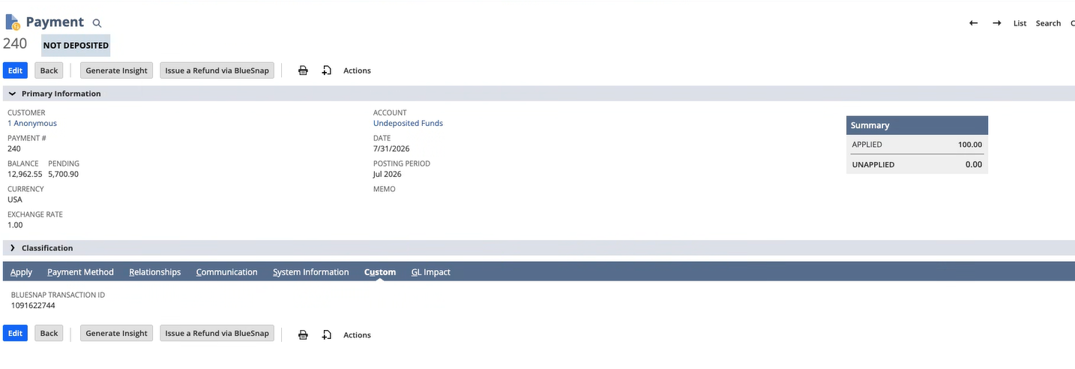
Once you select "Issue a Refund via BlueSnap" you'll be presented with a new screen to enter the amount to refund. On this page all the fields will be unavailable except for the "Base Refund Amount" field. The value you enter in this field is the amount you want to refund to your customer without the surcharge amount. For example, if the original sale was for $100, plus a $3.00 surcharge and you want to refund half the amount back to your shopper, you only enter $50.00 and the appropriate surcharge amount will be automatically calculated for you.
Note: If you've enabled the Multi-Location Inventory feature within your NetSuite account you will also be required to select the location for this refund to apply. The "Location" field will appear below the "Base Refund Amount" field.
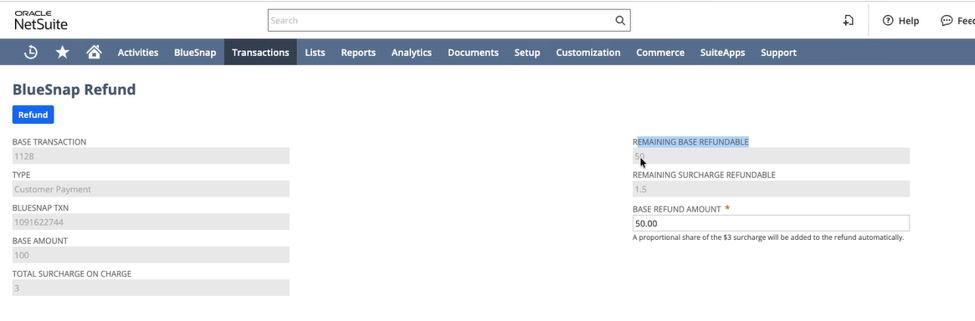
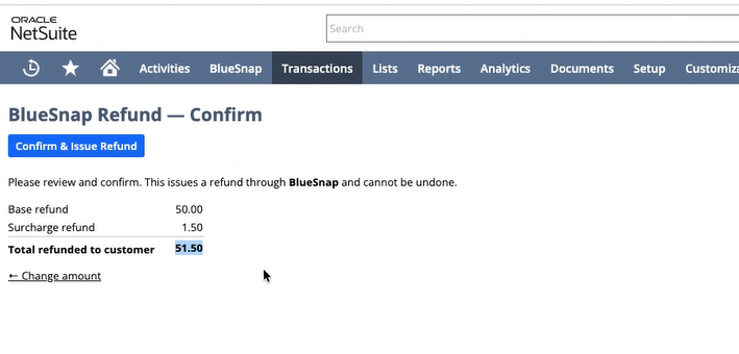
Now that you've entered in the amount you wish to return to your customer, select the Refund button at the top of the page. Selecting this button will present a confirmation page so you can view the transaction before it's committed. Once you review, and approve the amount, simply press the Confirm & Issue Refund button to complete the transaction.
Troubleshooting
| Log Entry | Meaning | Fix |
|---|---|---|
| Error - Surcharge enabled but CC Surcharge item not configured | Booked base amount only | Set CC Surcharge Item |
| Audit - No surchargeFee on IPN; booking base only | Surcharge enabled but BlueSnap sent no surcharge | Expected for non-surcharged transactions. If it happens for every charge then surcharge isn't enabled on the BlueSnap merchant account |
| Error - Surcharge booking failed - rolling back | The save failed; both records were removed and the postback was rejected for retry | Most common causes: item not shared with the transaction's subsidiary, a mandatory Department/Class/Location on the Cash Sale, a closed accounting period, or a currency mismatch |
| Error - Rollback of surcharge cash sale failed or Rollback of base record failed | Rollback itself failed — partial data may remain | Manually delete the leftover record, then let BlueSnap re-deliver the IPN |
| No surcharge Cash Sale, no error, amounts full | Toggle off, or the charge did not come from the payment-link flow | Check Enable Surcharge on the profile actually used; confirm the charge is an External/BlueSnap Checkout/Payment Link charge |
| Cash Sale in Unapproved Payment status | The Cash Sale's payment was not registered against the profile | The plugin sets handlingmode=MIMIC with ACCEPT results; verify the payment processing profile and payment instrument on the charge are still valid |
Updated 3 months ago